


Cybersecurity Basics: A Practical Guide for Small Teams
A five-person design studio runs on email, laptops, and shared project files. The owner manages the accounts, the finance lead pays suppliers, and everyone has deadlines. When an email arrives asking the team to change a supplier’s bank details, who checks it? If a project file disappears, who knows how to recover it? Cybersecurity basics give a small team clear answers to those questions. You can start with the accounts, devices, and files your team relies on to get through a normal working day.
Cybersecurity basics are the everyday practices that protect your accounts, devices, and data. Start by using unique passwords and multifactor authentication, verifying unusual requests before acting, installing software updates, and keeping backups you can restore. Give each task an owner and agree on a simple way to check that it works.
What Do Cybersecurity Basics Protect?
Start with one service your team uses every day. At the design studio, the shared business inbox receives client approvals, supplier invoices, and requests to reset other accounts. Losing access could delay a project. Unauthorised access could expose confidential messages or let someone send instructions that appear to come from the studio. Mapping your stack usually overlaps with the productivity software your team already pays for, so an audit is a good place to tie both lists together.
NIST’s Cybersecurity Framework 2.0 Small Business Quick-Start Guide provides a starting point for businesses with limited cybersecurity plans. For a small team, that can begin with three questions. Which accounts let people sign in? Which devices do they work from? Which files would they need to recover to keep serving clients?
The answers help you assign work. The person who manages email can check account settings. The person responsible for project files can identify which folders need backups. One person may fill both roles in a small business. What matters is that everyone knows who will act.
How to Secure Business Accounts
I’d start with business email, especially accounts that can administer the service or receive password reset messages. Then list the other services your team depends on, such as shared storage and invoicing. For each service, identify who needs access and who can change its settings.
Use Unique Passwords and a Password Manager
A unique password is used for one account only. If a password is exposed at one service, using a different password elsewhere limits where those same details can be used. A password manager helps by generating and storing passwords, so staff can use a different one for each account without memorising them all. CISA’s Secure Our World guidance recommends strong passwords and a password manager.
At the studio, each employee uses an individual account to open the shared inbox. That lets the email administrator remove one person’s access when they leave, while everyone else can keep working. To check that this setup works, review the inbox’s access list against the people who currently need it.
Turn On Multifactor Authentication
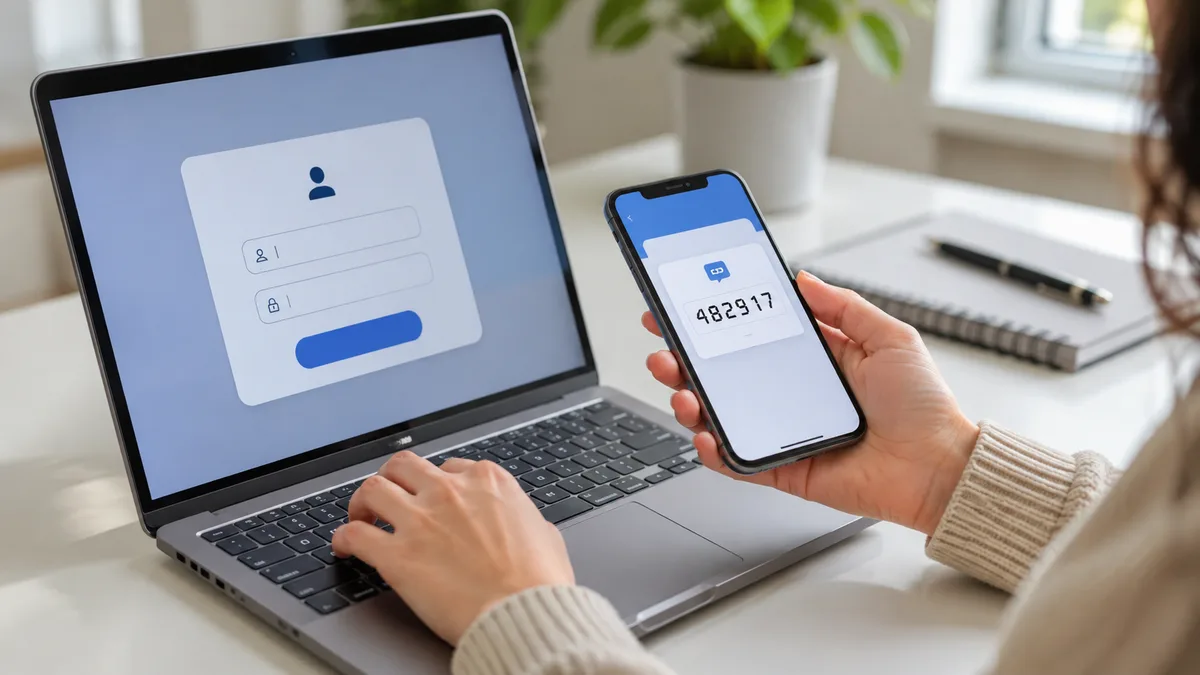
Multifactor authentication (MFA) requires more than one type of evidence to sign in. For example, an account might require a password and a security key. That gives the account another layer of protection if someone learns the password.
The studio’s email administrator checks that MFA is required for staff and administrator accounts. They also review any exceptions and run a fresh sign-in with an approved test account to confirm the extra verification step appears. The settings show who is covered. The test shows what the sign-in looks like in practice. The administrator also documents how staff can recover access if they lose their verification device.
How to Recognise and Report Phishing
Phishing uses deceptive messages to persuade people to hand over information, open a harmful attachment, or take an action such as redirecting a payment. CISA’s Secure Our World guidance recommends recognising and reporting suspicious messages. A team can make that easier by agreeing on where to report them before anyone receives one.
Spot an Unusual Request
Suppose the studio’s finance lead receives an email that appears to come from a print supplier. It asks the studio to use new bank details for an invoice due that afternoon. The sender’s name looks familiar, and the invoice amount matches what the finance lead expects.
I’d focus on what the message asks you to do. A request to change payment details deserves a separate check, even when the spelling, logo, and sender name look right. Other reasons to pause include an unexpected attachment, a request to share a password, or pressure to skip the usual approval process.
Verify It Through a Trusted Channel

The finance lead calls the supplier using a phone number already in the studio’s records. They ask whether the supplier requested the change. If the supplier confirms it, the finance lead records the confirmation and follows the usual approval process. If the supplier denies it or the team can’t verify the request, the finance lead holds the change and reports the message through the agreed channel.
Reporting tells the team who needs to follow up and can help them spot whether colleagues received a similar request. Give staff a clear contact, such as the operations lead or IT provider. If someone has already shared information or approved a payment, they should include that detail when they report it.
Why Software and Device Updates Matter
A security patch is a software update that corrects a security weakness. CISA includes keeping software updated among its basic protections. For the studio, that means checking work laptops, browsers, and the apps staff use to open client documents. A browser update can be just as relevant to daily work as an operating system update. If the team is adding new assistants or tools, our guide to AI productivity tools covers the apps you may need to add to this update cycle.
Enable automatic updates where appropriate, and decide who checks that they’ve completed. Some updates need a restart. A laptop that stays asleep overnight may still show a pending restart the next morning. The studio’s device owner can check the update status, arrange a restart if needed, and confirm that the device reports the expected version afterward.
Check whether older devices and apps still receive security updates from their vendors. If a laptop has reached the end of support, the device owner can assess whether it can move to a supported system or needs replacing. That decision is easier to plan when the inventory lists what each device does and who depends on it.
How to Back Up and Restore Business Files
A backup gives you a copy of information you can recover after deletion, device failure, or another disruption. The UK National Cyber Security Centre’s Small Business Guide recommends backing up important data regularly and testing that it can be restored. For the studio, that starts with deciding which project files, invoices, and business records the team would need to resume work. Backups fit inside the wider conversation about AI transformation governance, where who can access what is decided before a crisis forces the question.
Keep a Separate Backup Copy
Cloud file sync helps people work from the same files across devices. A deletion or unwanted change can also sync across those devices. Some cloud services provide version history or a recovery period, so check what your plan covers and how far back you can recover.
Keep a separate backup copy with access appropriate to its purpose. For example, the studio’s designers may all need to edit project folders, while only the designated backup owner needs to manage the backup. The team should also know who can restore files if the usual owner is away.
Test a File Restore
I’d pick a file the team would recognise, such as a completed project brief with a known revision date. The backup owner restores it to a separate location, opens it, and confirms that it contains the expected version. Restoring it separately lets the team run the check without overwriting the working copy.
Record when the test happened, which file was restored, and what the owner confirmed. If the expected version is missing, check whether the folder was included in the backup and how often it was copied. A successful test confirms that the chosen file and version were recoverable under those conditions. Testing other important folders over time gives the team a better view of its coverage.
Small Business Cybersecurity Checklist
A checklist makes it easier to hand work over and spot unfinished tasks. Give each action a named owner and specify the evidence you expect to see. A five-person team may assign several checks to the same person. Each task should still have a clear outcome.
| Action | Suggested owner | Evidence to record |
|---|---|---|
| Review access to business email | Email administrator | The access list matches the staff who need the inbox. |
| Confirm MFA coverage | Email administrator | Staff and administrator accounts are covered, and a fresh test sign-in confirms the extra step. |
| Verify supplier payment changes | Finance lead | The request was confirmed through a contact already on file and recorded before approval. |
| Check software updates | Device owner or IT provider | Important devices show the expected update status, and required restarts are complete. |
| Test backup recovery | Backup owner | A sample file opens after a restore and contains the expected version. |
Use the checklist when something changes. A new employee may need an account and MFA. A new project folder may need to be added to the backup. Assign the follow-up while the change is fresh and set a date to verify it.
Frequently Asked Questions
What should a small business do first to improve cybersecurity?
Start by listing the accounts, devices, and files the team relies on most, then secure business email and administrator accounts. Confirm who has access and require MFA where supported. Those checks are a manageable starting point for a team with limited time.
Do I need MFA if I already use a strong password?
Yes. MFA adds a separate sign-in check if a strong password is exposed. Start with accounts that control email, shared files, or other users’ access. Check which accounts the policy covers and who can help staff recover access.
What should I do if I receive a suspicious work email?
Pause the requested action, verify it through a contact method you already trust, and report the message through your team’s agreed channel. For a payment change, call the supplier using a number already on file. Record the outcome before changing any payment details.
Is cloud file sync the same as a backup?
Cloud sync keeps files consistent across devices, while a backup keeps a recoverable copy. A synced deletion can affect multiple devices. Some cloud services offer recovery features, so check what you can restore and how long earlier versions are kept.
How do I know whether a backup works?
Restore a sample file, open it, and confirm that it contains the expected version. Use a separate location so the working copy stays in place. Record the result and repeat the check for other important files or folders.
Final Thoughts
This week, give three people clear jobs, even if one person fills several roles. Ask whoever manages email to confirm MFA coverage, the finance lead to document how supplier changes are verified, and the backup owner to restore one important file. At the next team check-in, ask what each person confirmed and which gaps still need attention. That gives you a record to build on as the team changes.